Group your videos around what people need
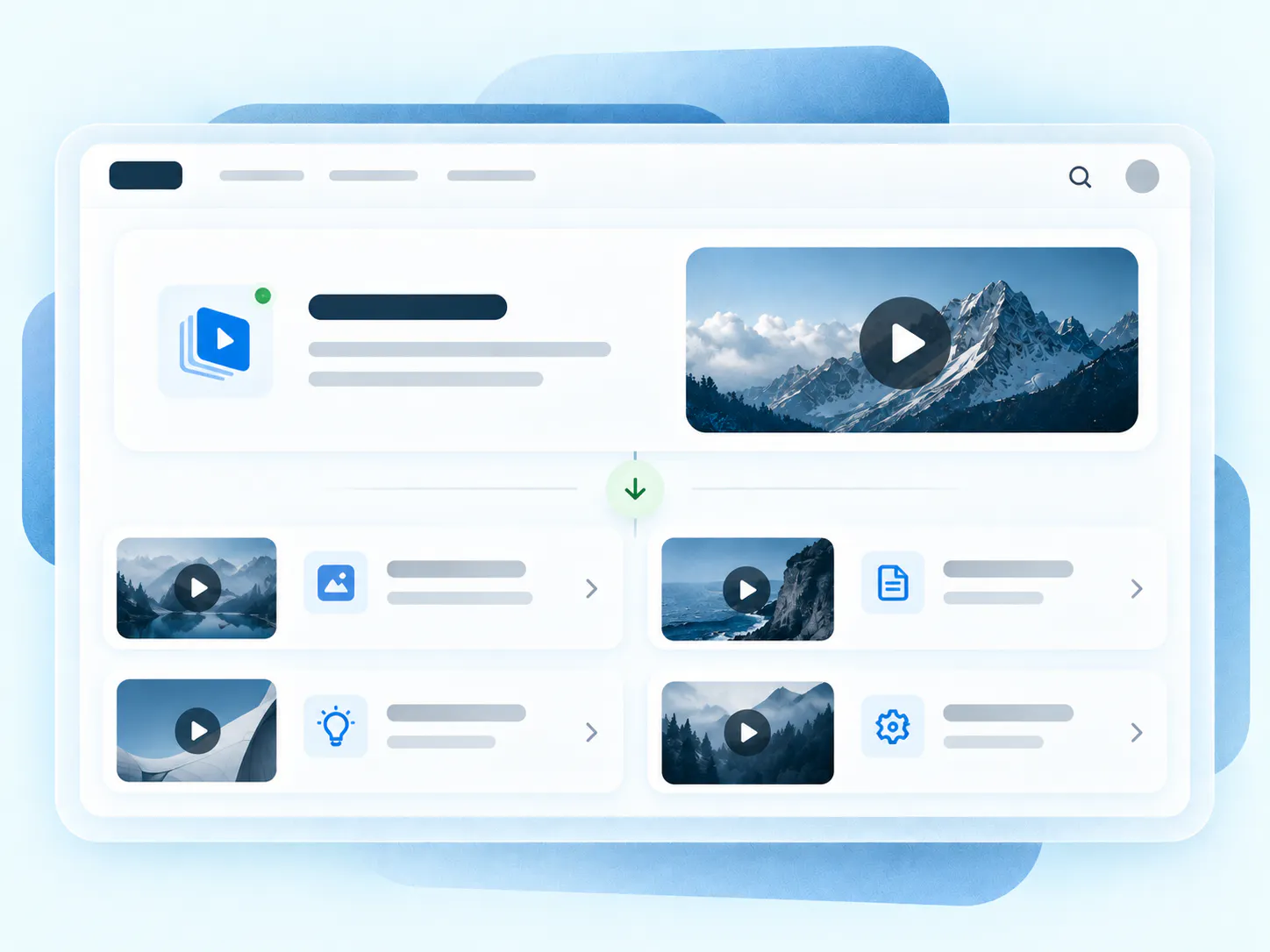
Group tutorials, demos, and supporting documents by topic, role, or workflow. Present each collection as a branded, searchable gallery inside your website, LMS, or help center.
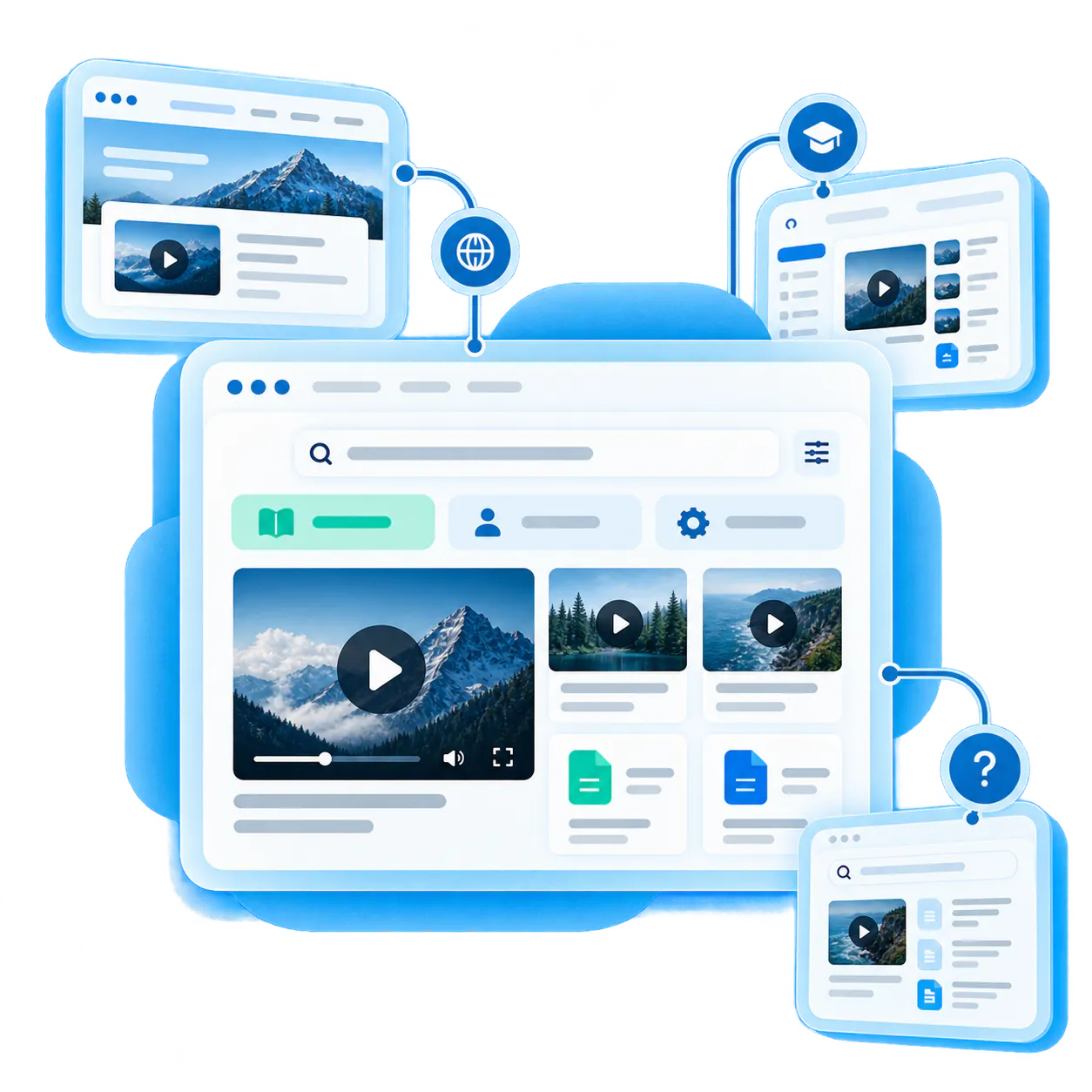
Group it. Place it. Help people find it.
Bring related videos and documents together, shape how people explore them, and deliver the collection inside the systems they already use.
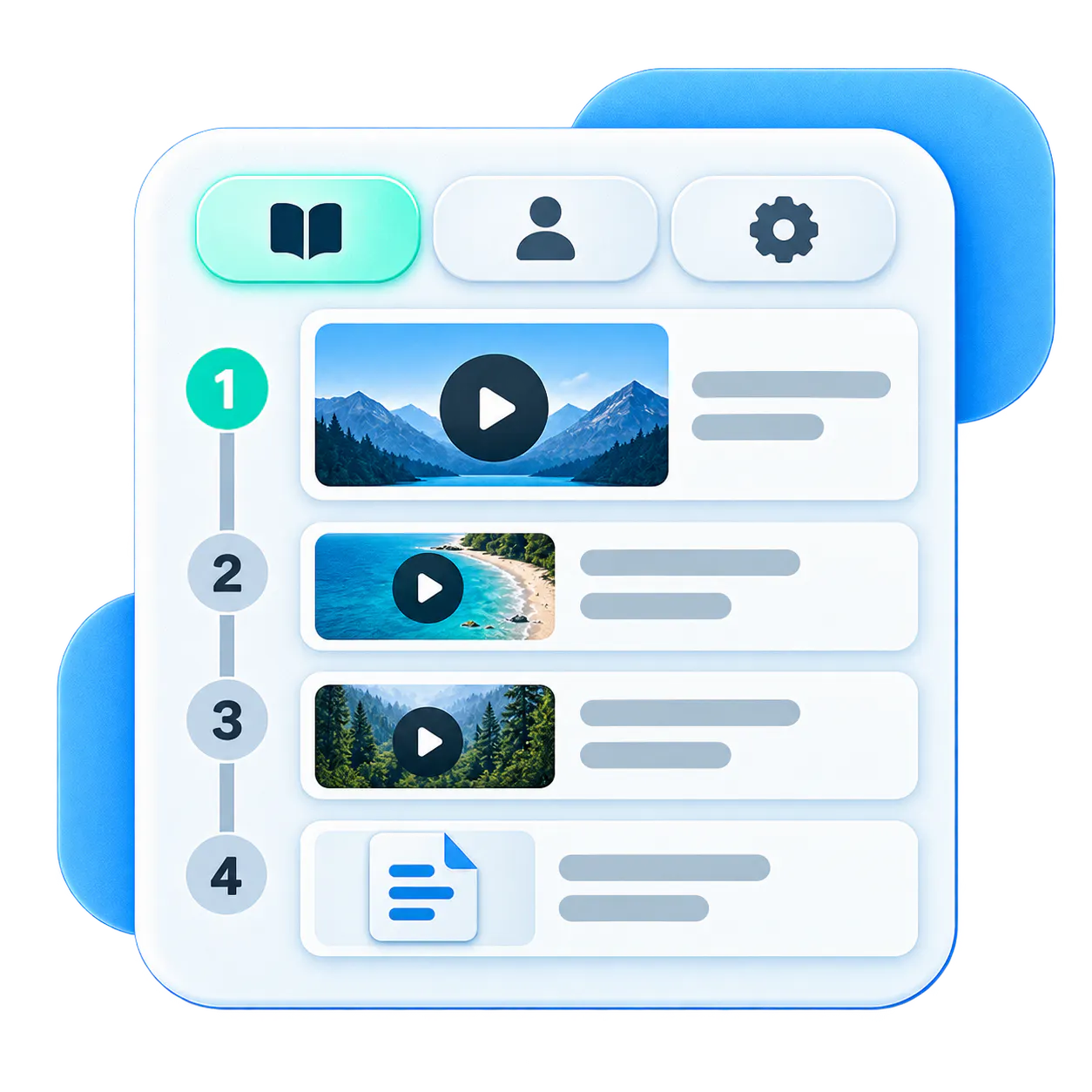
Group the right content
Organize videos and documents by topic, role, product, or workflow. Set the order around what viewers need to understand or accomplish.

Put it where people already learn
Embed galleries in your website, product, help center, LMS, oг internal system. When a collection needs its own destination, publish it through a hosted Page.
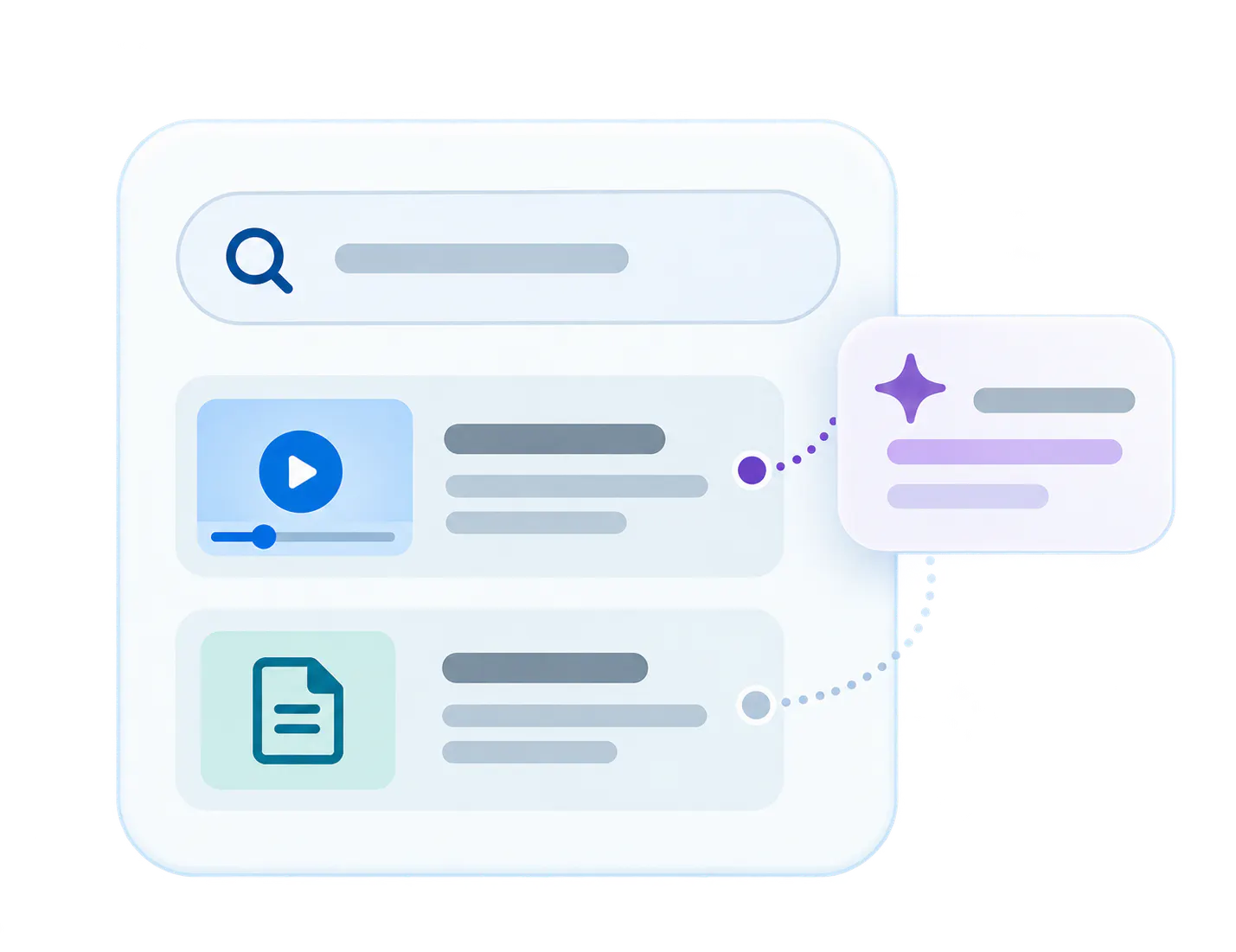
Help people find the right answer
Let viewers browse and search the collection. Add VideoGPT for suggested questions and answers linked to the relevant video moment or supporting document.
Shape each gallery around its purpose
Control what belongs together, how it appears, where it is used, and who can access it.
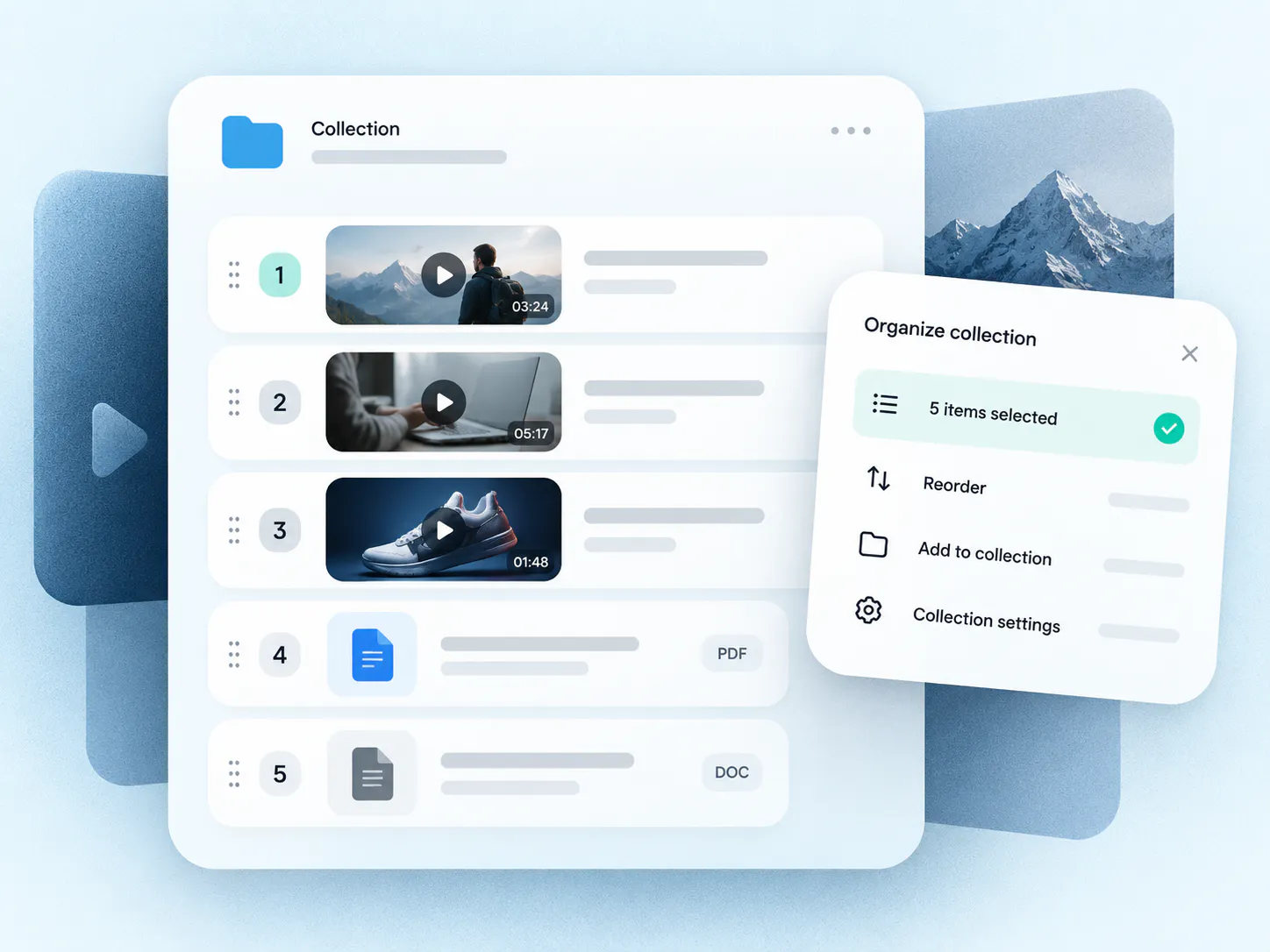
Group the right content
Select and order videos and supporting documents around a topic, audience, product, or workflow, so each collection serves one clear need.
- collection
- collection
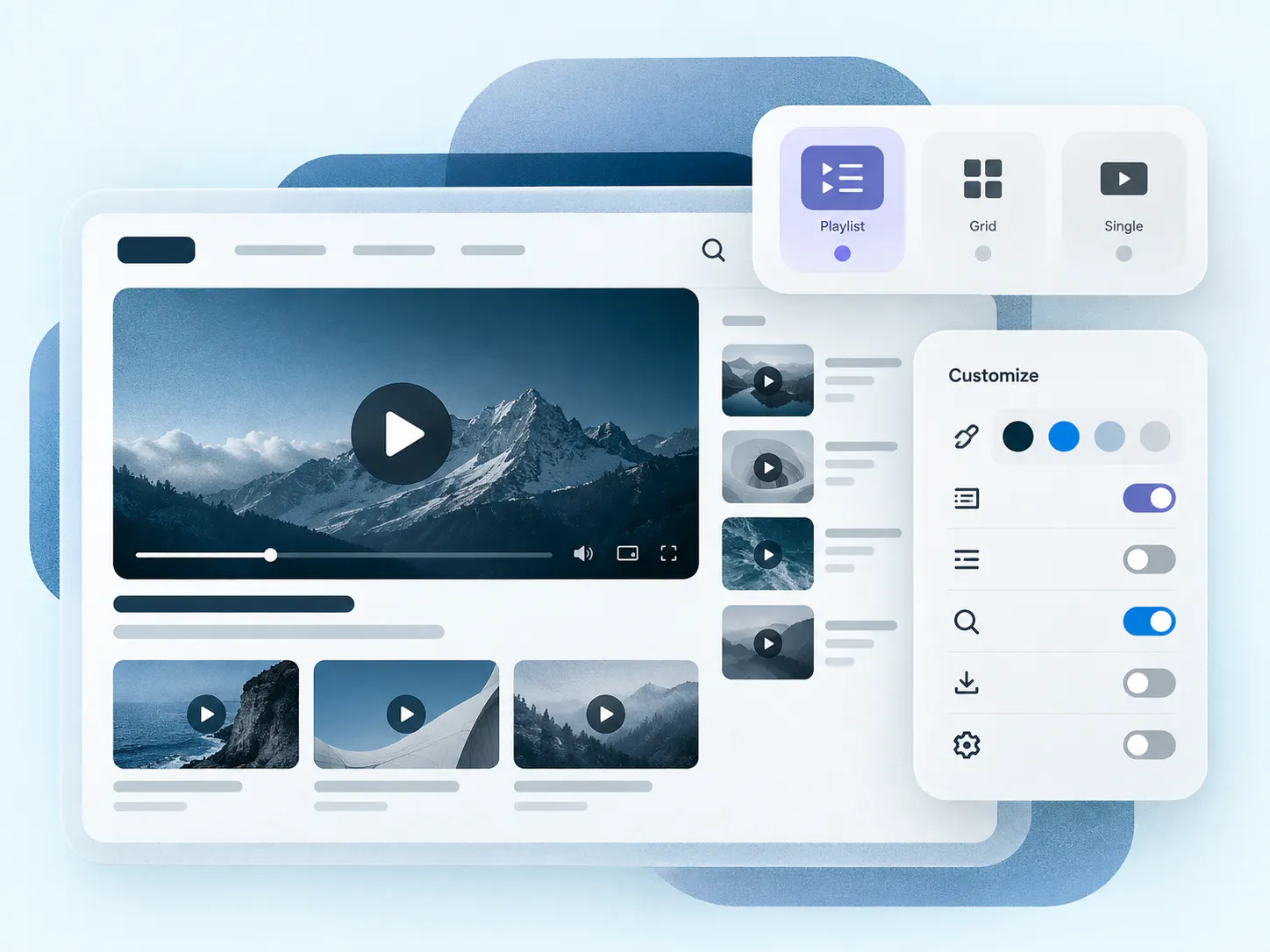
Shape the viewing experience
Choose playlist, category, or single-video layouts, then set branding, navigation, metadata, search, downloads, and player behavior to fit the content and destination.
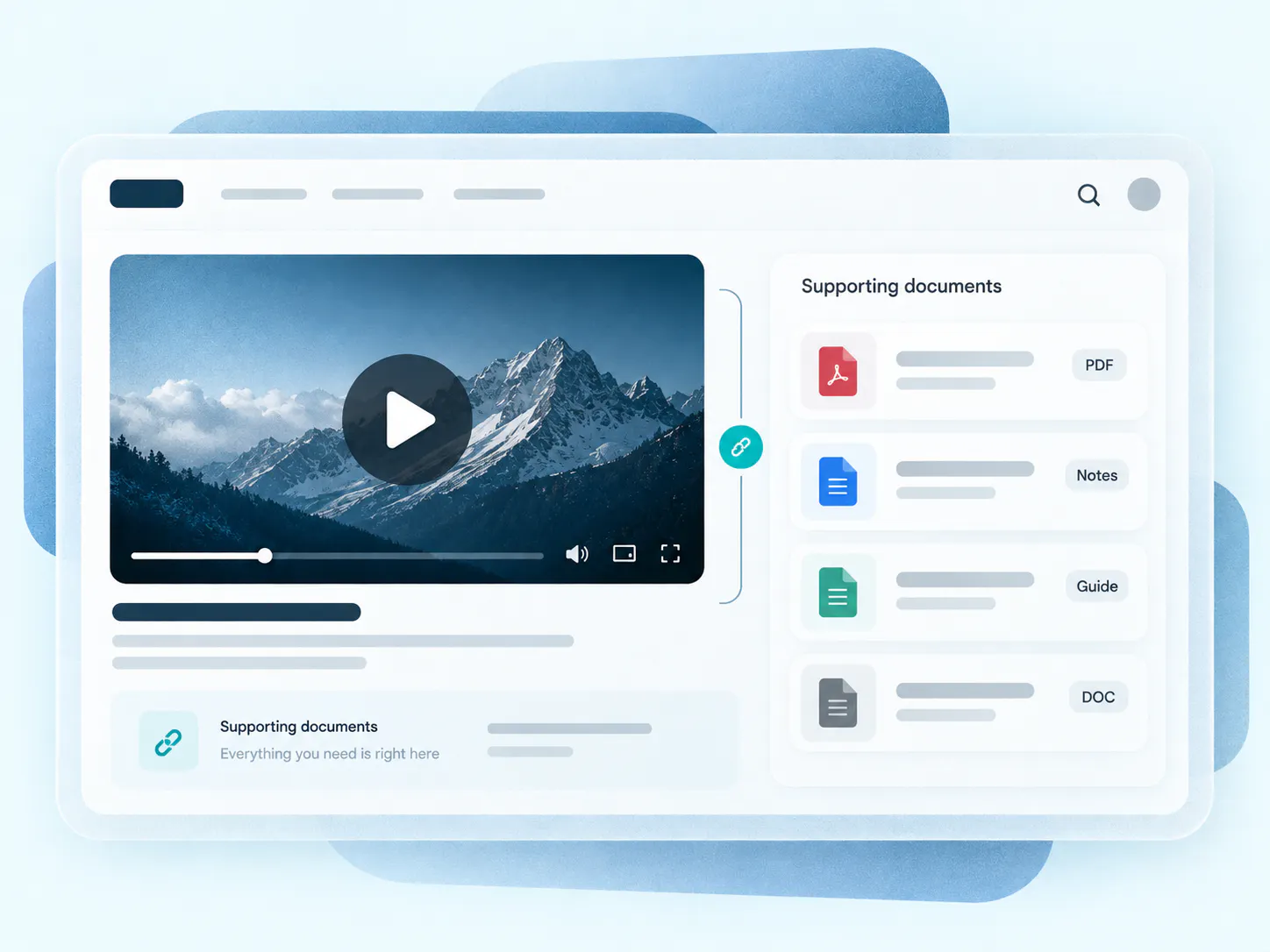
Keep supporting documents close
Pair walkthroughs with PDFs, release notes, onboarding guides, and technical documentation, keeping the explanation and reference material together.
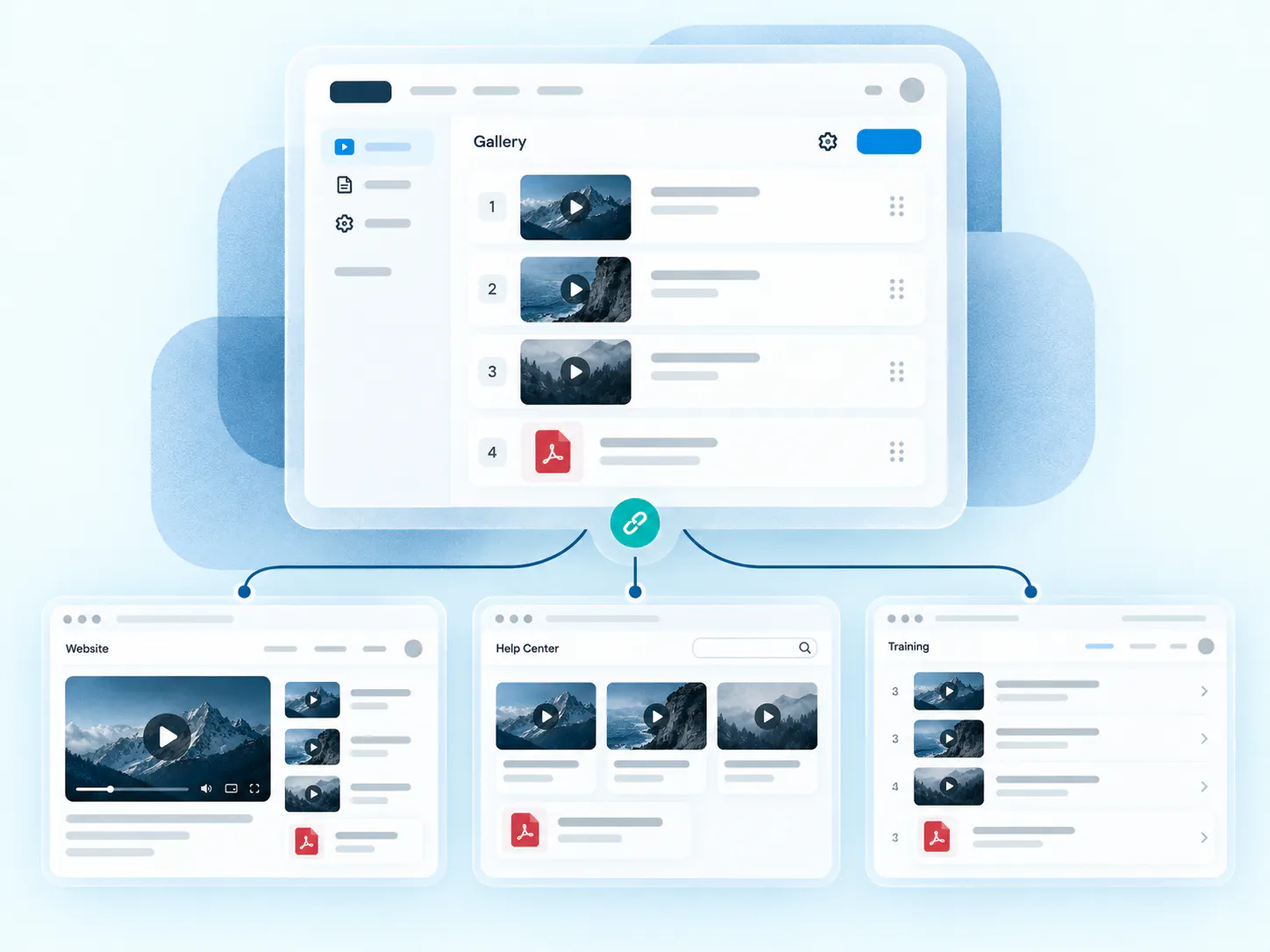
Reuse one gallery across destinations
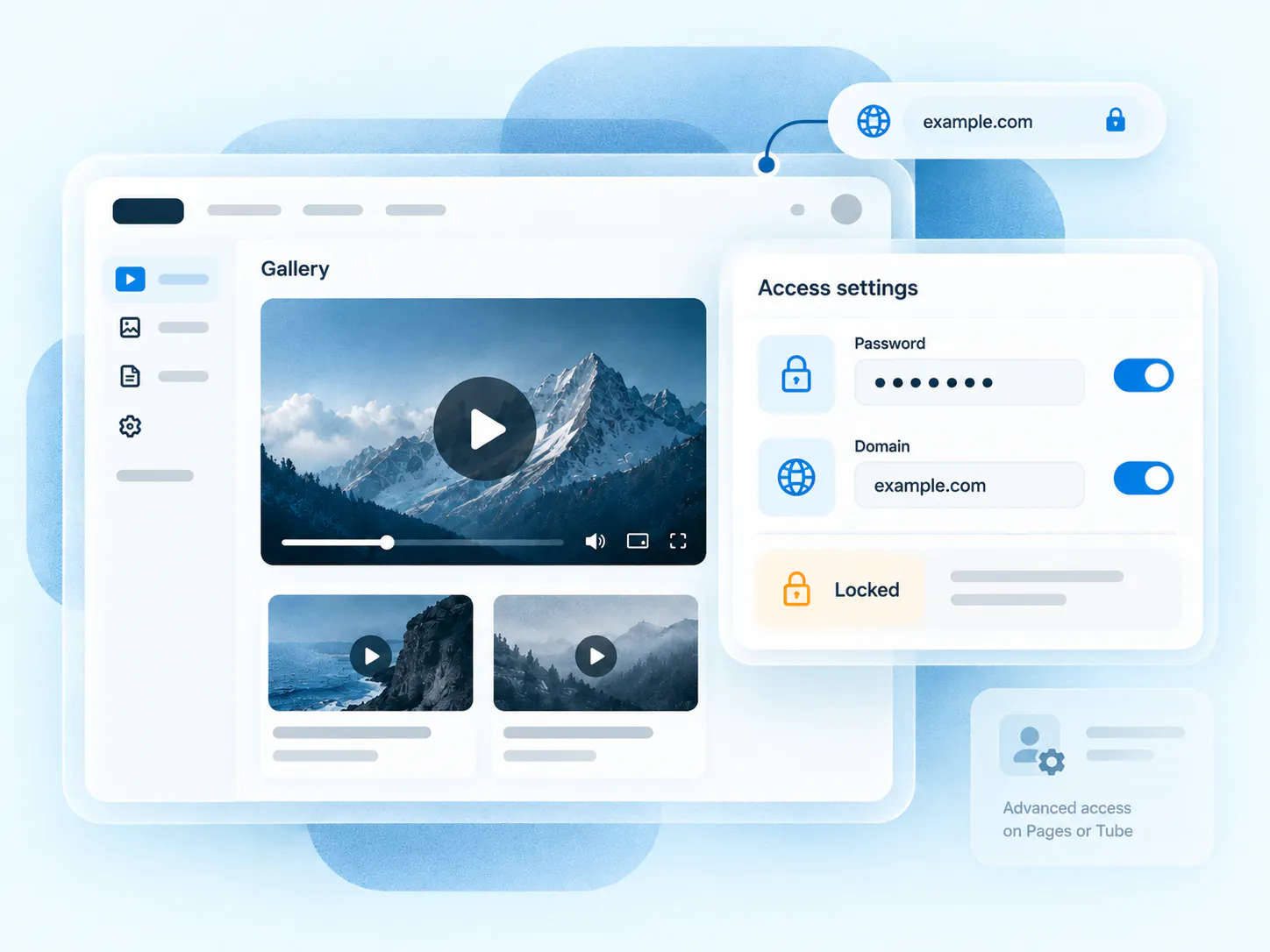
Use password protection and domain locking for embedded galleries. For named-user login or detailed permissions, use Pages or Tube.
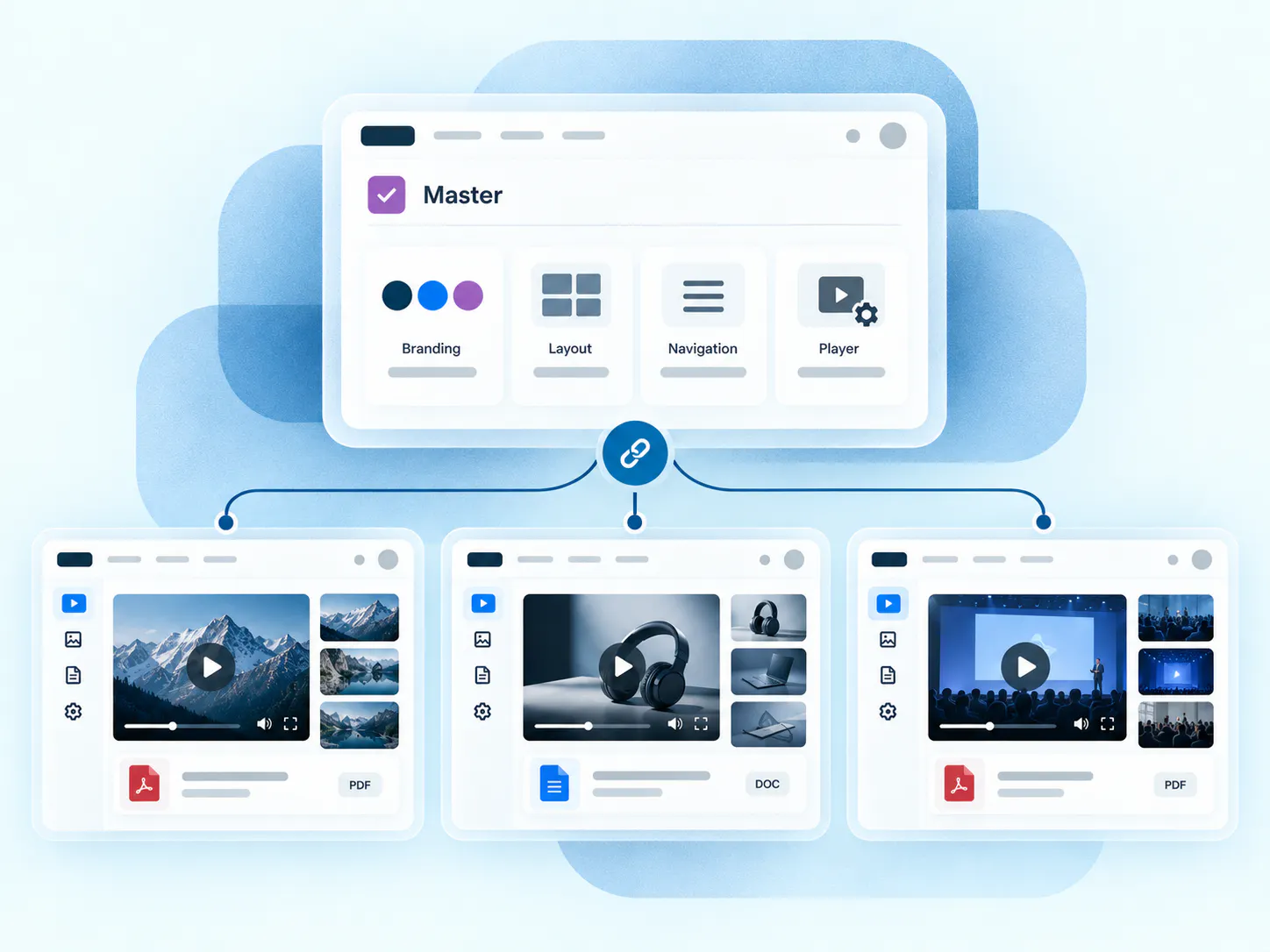
Standardize with master galleries
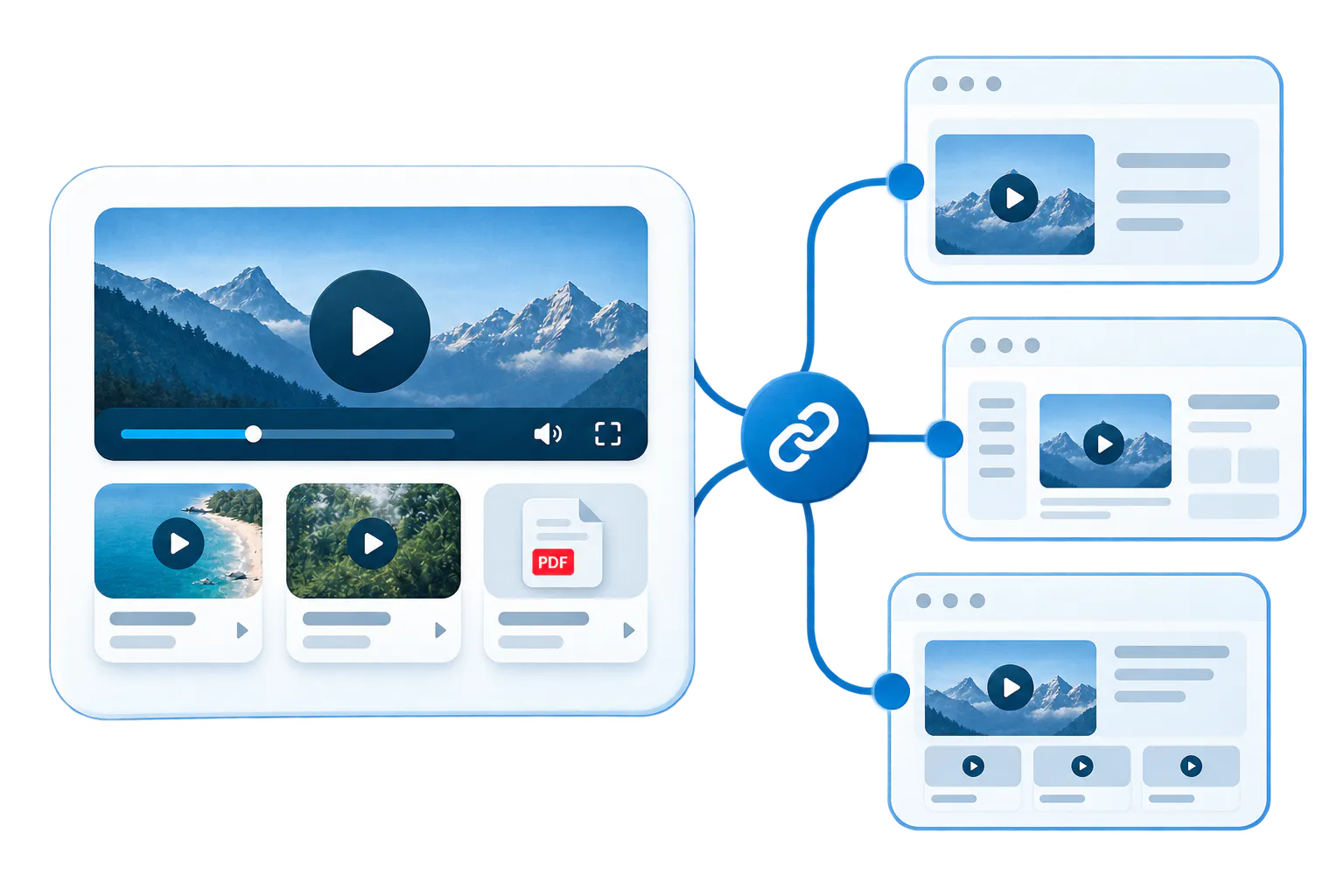
Embed one gallery across multiple pages or systems while maintaining its content, order, documents, and settings centrally.
Protect access where needed
Share approved branding, layouts, customization, and player behavior across linked galleries without forcing every gallery to contain the same content.
How Galleries organize, deliver, and improve knowledge
The workflow is simple: structure the collection, choose the right view, deploy it where the work happens, help people understand what is inside, then improve the library over time.

-
1
Choose the assets and order
Build the collection around the real task, not just around upload date. Group by topic, role, workflow, module, product line, issue, or audience. -
2
Apply the right template and settings
Use the template that fits the environment, then configure navigation, metadata, search, downloads, branding, attached-document visibility, and player behavior around that audience and task. -
3
Deploy it where the work happens
Embed the gallery inside websites, product pages, help centers, documentation systems, LMS environments, internal portals, SharePoint, Salesforce, partner portals, knowledge bases, and other controlled internal systems where embeds make sense. The same gallery can also be published through Pages. -
4
Let users browse, search, ask, or start from a welcome message
Search and attached documents make the collection easier to use. VideoGPT can add a welcome message, suggest starter questions, answer across the gallery, link to the right source, and jump users to the exact moment that matters. -
5
Measure and improve
See what people watch, what they search for, where questions repeat, and which topics need better coverage. Use that signal to tighten the gallery, improve supporting documents, and keep the collection more useful over time.
Help viewers understand what is inside
Long tutorials and webinars are hard to navigate. VideoGPT gives viewers a starting point and a direct way to ask.
Use a content-based welcome message to explain what the gallery covers and which topics viewers can explore.
Offer useful starter questions based on the collection, or let viewers ask in their own words.

Choose how people will access the collection
Organize content with Galleries, then embed it in an existing system, give it a hosted Page, or build a Tube portal.
A collection inside your existing pages
Group related videos and documents in a configurable collection embedded within existing pages and workflows. Maintain it once across multiple destinations.
A branded hosted destination
Give one audience, program, or rollout a branded hosted destination with its own access options.
A portal people return to
Create a broader portal with workspaces, channels, permissions, and multiple content areas that people return to.
Bring focused collections into existing workflows
Use Galleries across websites, products, support, training, partner, and internal environments without moving people away from their existing workflow.
Product education
Embed onboarding videos, feature walkthroughs, role-based guidance, and release updates in product pages, help docs, or resource centers.

Support and troubleshooting
Place troubleshooting videos and supporting guides in knowledge bases, help centers, documentation systems, technical articles, product interfaces, or partner and distributor portals.

Embedded training
Organize lessons and reference files inside LMS courses, academies, onboarding programs, or hosted Pages.

Internal knowledge
Deliver recorded sessions, updates, and operational training through intranets, SharePoint, Salesforce, or controlled internal portals.

How leading teams scale with Galleries
See how enterprise education, healthcare, and engineering teams organize hundreds of videos and documents into structured, reusable knowledge galleries.

Leidos — Scaled Product Education
At Leidos, Galleries organize a product education library with ~600 videos, 150 galleries, and 350+ attached documents across embedded product pages and hosted training Pages.

Verily — Knowledge Layer
At Verily (an Alphabet company), Cincopa serves as a distributed video-and- document knowledge layer across product UI, support documentation, and LMS environments.

Chamberlain — Field Troubleshooting
At Chamberlain, Galleries support structured technical playlists across support documentation and training environments, helping technicians pinpoint visual fixes fast.
Frequently Asked Questions
Everything you need to know about organizing, embedding, and scaling reusable video-and-document galleries across your enterprise systems.
A playlist mainly controls what plays and in what order. A Cincopa Gallery can also group videos with documents, control layout, navigation, and metadata, and support search or VideoGPT across the collection. It is a configurable content experience, not only a playback queue.
Galleries can appear in websites, help centers, LMS environments, product pages, intranets, and partner portals that support Cincopa embeds. The destination must allow the embed code. Where embedding is unavailable, a hosted Page can provide a separate destination.
Yes. Reusing the same gallery lets you maintain its content and settings centrally across its embedded destinations. Separate galleries remain separate collections; master galleries share configuration when those collections need consistent branding, layouts, or player behavior.
Yes. Galleries can pair video content with supporting documents, including PDFs, setup guides, and release notes. Configure document visibility so viewers can open the relevant reference alongside the video explanation within the same collection.
Choose Pages when an audience needs a branded hosted destination with its own access options. Choose Tube for a portal with workspaces, channels, and permissions. Galleries organize the collection and can be embedded into existing pages without requiring a larger portal.
Yes, when enabled. VideoGPT can introduce the gallery, suggest starter questions based on its content, and answer across videos and documents. Answers can link to a supporting document or video timestamp. Galleries also work without VideoGPT.
A master gallery shares settings such as branding, layout, customization, and player behavior with linked galleries. Use it to keep different collections consistent. Reuse a single gallery when several destinations should show the same maintained collection.
Yes. Password protection controls entry, while domain locking restricts where a gallery can be embedded. For named-user login or more detailed portal permissions, review the access options provided by Pages or Tube for the intended audience.
Yes. Start with one topic, product area, support issue, or training workflow using the videos and documents you already have. A small gallery can still benefit from clear organization, particularly when its videos are long or cover several procedures.
Start with one product area, one support library, or one training flow
Start with one product area, one documentation surface, one support library, one internal portal, or one embedded training flow. Get that collection working well, help viewers understand what is inside, then reuse the same gallery across adjacent destinations without duplicating the library.